
TL;DR
- WordPress, your theme and your plugins get regular updates that fix security holes, fix bugs and keep things working with new browsers.
- Skipping updates leaves known security holes open and makes the eventual update bigger and riskier.
- Updates occasionally break things, which is why you back up first and check the site after.
- Regular, small updates with a check afterward are the safest approach.
Log in to almost any WordPress website that hasn't been looked after in a while and you'll see it: little red bubbles with numbers, telling you updates are waiting. It's tempting to ignore them. The site works, so why risk it?
We've been building and maintaining websites since 2010, and we come from an IT background where patching software is just part of the job. Here's what updates actually do, what happens when you skip them, and how to update without the stress.
What gets updated on a WordPress site
- WordPress core: the main software that runs your site.
- Your theme: the design framework (on our sites, that's Divi 5).
- Plugins: add-ons for forms, security, SEO, online stores and more.
- PHP: the programming language on the server that WordPress runs on.
Each of these is maintained by different people on different schedules, which is why there always seems to be something to update.
Why updates matter
Security fixes
When someone finds a security hole in a popular plugin or theme, the developers fix it and release an update. The trouble is, once a fix is public, so is the problem. Automated tools scan the internet looking for sites that haven't updated yet. Small business sites aren't too small to be targeted. Bots don't care who you are, only whether you're vulnerable.
Bug fixes
Updates fix things that don't work quite right, from a form that occasionally fails to send, to a layout issue on certain phones.
Compatibility
Web browsers, PHP and WordPress itself keep moving forward. Plugins and themes that aren't updated slowly fall out of step, and eventually something stops working.
Speed and new features
Many updates make things faster or add useful features. Newer PHP versions, in particular, can improve performance.
What happens when you skip updates
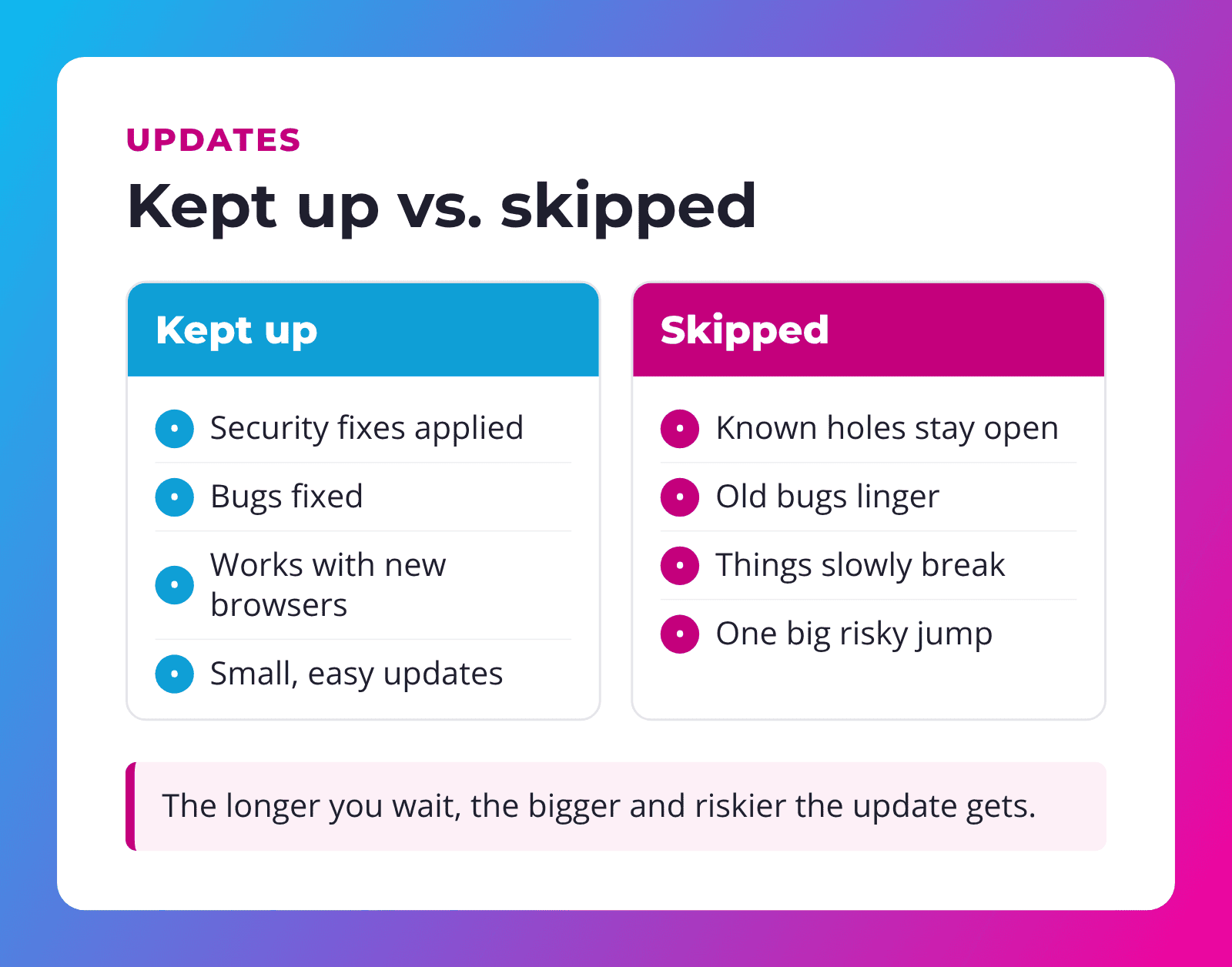
Skipping one update rarely causes a disaster. Skipping them for months or years is a different story:
- Known security holes stay open, making your site an easy target.
- The eventual update is a big jump. Updating a plugin that's two years behind is far more likely to cause problems than updating one that's a week behind.
- Some plugins get abandoned. If a plugin is no longer maintained, it may need to be replaced, which takes planning.
- Your host may stop supporting old PHP, forcing a rushed upgrade.
The pattern: small, regular updates are boring. Big, overdue updates are where the trouble happens.
Why updates sometimes break things
This is the fear that keeps people from updating, and it's a fair one. Occasionally a plugin update clashes with your theme or another plugin, and something on the page looks wrong or stops working.
That's not a reason to avoid updates. It's a reason to update carefully:
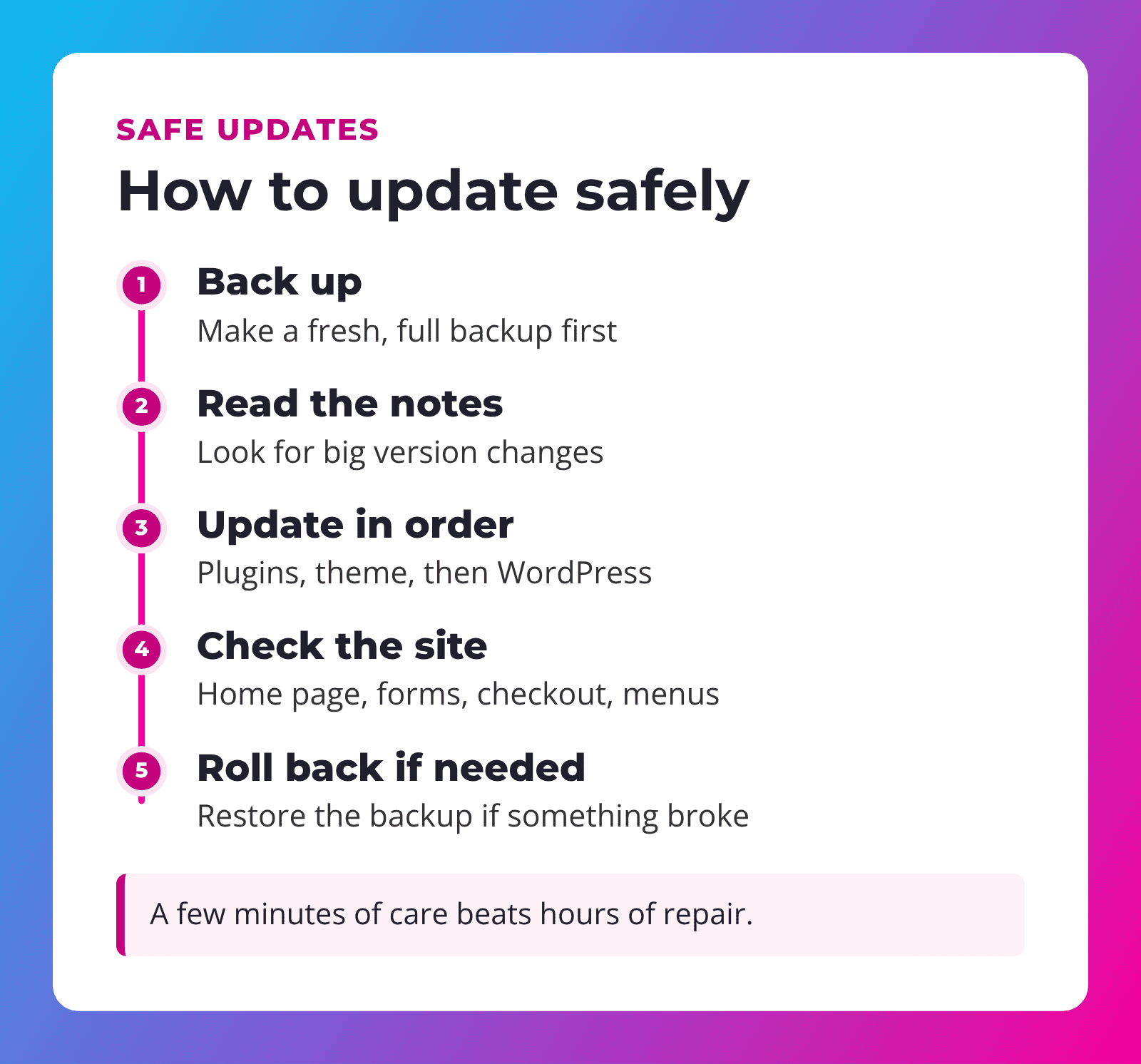
The key ingredient is a good backup. If an update goes wrong, you restore and try again later. Our guide to website backups explains what a good backup plan looks like.
Your theme and page builder count too
People often remember plugins and forget their theme. Your theme controls how the whole site looks, so it gets updates for security, bug fixes and new browser features just like plugins do. We build sites with Divi 5, a widely used WordPress page builder that's actively maintained, so updates keep coming.
One thing to watch: if someone edited your theme's files directly, updates can overwrite those changes. Good developers use a child theme or built-in settings instead, so updates don't erase custom work. If you're not sure how your site was set up, it's worth asking before you click "update."
When a plugin is abandoned
Sometimes a plugin stops getting updates because its developer moved on. WordPress.org shows when a plugin was last updated. If it's been a long time, plan to replace it with a maintained alternative. Waiting until it breaks, or until a security hole is found, turns a calm swap into an emergency.
Should you turn on automatic updates?
WordPress can update some things automatically, and the official WordPress guide to updating (opens in a new tab) explains the options. Automatic updates are better than no updates, especially for small security releases.
The trade-off: if an automatic update breaks something, nobody may notice until a customer tells you. That's why many businesses prefer a person to run updates and check the site afterward, especially for online stores and booking systems where a broken checkout costs money.
"Updates are like oil changes. Skip one and you'll probably be fine. Skip them for two years and you're asking for trouble."
What about my web host's updates?
Your hosting company looks after the server itself, like the operating system and server software. That's important, but it's separate from the WordPress updates inside your site. Many hosting plans don't touch your plugins or theme at all. If you're not sure who updates what, ask. "I thought you were doing that" is how many sites end up years out of date.
A simple update routine
- Weekly: check for updates and apply them with a fresh backup in place.
- After updating: click through the home page, contact form, menus and anything that takes payments.
- Monthly: remove plugins you no longer use, since unused plugins still need updating.
- Yearly: check that your PHP version is current and supported.
How our Service Plans handle updates
Every Service Plan includes weekly WordPress, theme and plugin updates, weekly website checks and bug fixes, daily backups and PHP on the latest version, all on managed WPMU DEV hosting. If an update causes a problem, we fix it or roll it back. You don't have to log in or think about it.
If you're comparing options, our posts on hosting vs. maintenance and what a care plan should include explain what to look for.
Frequently asked questions
How often should I update WordPress?
Check weekly. Security updates should be applied promptly, with a backup in place first.
Can updating plugins break my website?
Occasionally, yes. That's why you back up first and check the site afterward, so any problem can be fixed or rolled back quickly.
Is it safe to leave old plugins installed if they're turned off?
It's better to delete plugins you don't use. Inactive plugins still take up space and can still be a security risk if they're outdated.
What is PHP and why does it need updating?
PHP is the programming language WordPress runs on, on your server. Newer supported versions are more secure and often faster.
Should I use automatic updates?
They're better than nothing, but someone should still check the site afterward, especially if you take payments or bookings.
Tired of seeing update notices?
SU Web Agency has maintained websites since 2010. Our Service Plans include weekly updates, weekly checks and daily backups, so your site stays safe without you lifting a finger.
Have a question first? Request more info.
